


Wansview Cloud is the kind of lifestyle app that sounds simple until you are standing beside a camera, trying to make a live view appear on your phone. I spent time looking at it from that practical angle: not just whether it can show a home remotely, but where the setup tends to feel unclear, how to recover when the viewing workflow breaks, and when the real problem is somewhere outside the app. My overall impression is that it is most useful for people who want a straightforward way to check a compatible Wansview camera while away from home, rather than a complete smart-home control center.
The app is free, aimed at Everyone, and comes from AJCLOUD INTERNATIONAL INC. It sits in the lifestyle category and has built a substantial user base, with more than a million installs and an average rating of 4.4 from roughly forty-four thousand ratings. Those figures suggest that the basic camera-viewing idea works for many households, but they should not be mistaken for a guarantee of effortless setup. Camera apps are unusually dependent on the exact device, network conditions, account details, and phone settings involved.
Where the first real obstacles appear
The first point where I would expect a new user to hesitate is before the app even becomes useful: the relationship between the phone, the camera, and the home network has to be correct at the same time. A person may install Wansview Cloud successfully and still see an empty device area, an offline message, or a camera that refuses to complete setup. That does not automatically mean the application is defective. It often means one part of the connection chain has not been completed.
I would begin by treating the app as one part of a system rather than as a standalone viewer. The camera needs power, the phone needs a stable connection during setup, and the account used in the app needs to be the one associated with the device. If any of those assumptions are wrong, repeatedly tapping refresh usually achieves very little. A slower, more deliberate check is often faster than restarting the entire process without knowing what changed.
Another common source of confusion is expecting the app to behave like a general-purpose home dashboard. Wansview Cloud is focused on viewing a home through supported Wansview camera equipment. If your goal is to combine cameras from several manufacturers, manage locks and lights, or build elaborate household automations, this is probably not the right center of gravity. Its value comes from keeping the camera-viewing task relatively direct, not from replacing every smart-home application.
There is also a difference between opening a camera successfully once and having a dependable daily routine. A first connection may work while you are close to the router, then fail later when you try to check the home from a mobile connection. I would test the exact situation I care about: viewing from outside the home, switching away from Wi-Fi, and reopening the app after it has been idle. That gives a much more honest picture than a quick test performed beside the camera.
What I would check before blaming the app
My first setup check would be the camera’s physical state. Confirm that it is powered and that its status indicators, if present on the particular model, show the expected condition. A loose power connection can look like an application problem because the device may disappear at random or remain stuck in an unavailable state. If the camera restarts by itself, I would solve that physical issue before changing account settings.
Next, I would keep the phone close to the home network during initial pairing and avoid moving between several networks while the process is underway. The phone can appear connected while the camera is not actually receiving the information it needs. I would also temporarily avoid using a guest network for setup, because guest-network isolation can prevent devices from communicating even when both show an internet connection.
Account details deserve a careful look. If the app opens normally but the expected camera is missing, I would check whether I am signed into the intended account rather than immediately adding the camera again. Duplicate attempts can make it harder to tell whether the device is unregistered, attached elsewhere, or simply being viewed from the wrong account. I find that taking a screenshot or note of the account identity during a successful setup is a small habit that saves time later, especially in a shared household.
Phone software can also interfere with a smooth experience. Wansview Cloud supports Android starting with version 7.0, and the current version listed for the app is 2.0.26080602. I would keep the phone’s operating system and the app reasonably current, then fully close and reopen the application after an update. On older phones, limited background activity or aggressive battery management may interrupt a viewing session; checking the phone’s own battery settings can be more useful than reinstalling the app immediately.
For a family setup, decide in advance who should use the main account and who should have access through whatever sharing method the compatible camera and app provide. I would not casually pass around the primary login. Besides being inconvenient, that makes it difficult to identify which phone changed a setting or caused a session to end. A clear household arrangement is especially helpful when one person installs the camera and another person is usually responsible for checking it.
A setup routine that reduces wasted attempts
I would use a simple sequence: install the app, sign in or create the intended account, power the camera, keep the phone on the home network, and add the device only after confirming that the camera is ready for pairing. I would wait for each screen to finish before pressing the same button repeatedly. If the process fails, I would record the exact stage where it stopped instead of starting over blindly.
That detail matters because different failures point to different causes. A camera that never appears is not the same as one that appears but cannot finish connection. A live view that works locally but not remotely suggests a different line of investigation from a device that cannot be reached even at home. The most useful troubleshooting clue is the first step that fails, not the final error message.
I would also test the camera from two locations before relying on it. First, view it while the phone is connected to the same home network. Then switch the phone to a mobile connection and try again. This separates local communication from remote access. If the local test fails, focus on power, pairing, and the home network. If local viewing works but remote viewing does not, the camera and account may be fine while the router or internet connection needs attention.
One practical tip is to avoid changing several variables at once. Do not reset the camera, change the router, reinstall the app, and switch accounts in one burst. You may eventually get a result, but you will not know what fixed it, and the same problem will be difficult to diagnose next time. I prefer changing one thing, testing again, and keeping a short note of the outcome.
Recovering the everyday viewing workflow
Once the camera is connected, the app’s main benefit is convenience. I can imagine using it to check whether a delivery has arrived, look in on a quiet room, or confirm that everything seems normal at home while traveling. The best workflow is not opening the app constantly; it is having a predictable routine for the moments when a quick visual check matters.
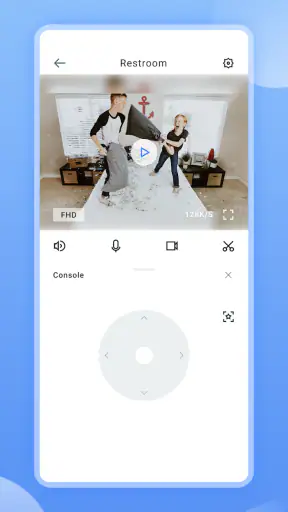
For example, picture leaving home in a hurry and later wondering whether a window was left open. I would open Wansview Cloud, wait for the device list to load, select the relevant camera, and give the live view a moment before deciding that it has failed. If the image does not appear, I would check whether the phone has a working connection and whether other internet-based apps respond. That avoids turning a temporary mobile-network delay into an unnecessary camera reset.
If the app shows the camera as unavailable, I would first close the viewing screen and reopen it once. If that does not help, I would check the camera’s power and the home internet connection, then try again from a different phone connection if possible. Repeatedly forcing the same screen to reload is less useful than establishing whether the issue follows the camera, the phone, or the network.
When a live view stops during an important check, I would note whether the rest of the phone still has internet access. If other services are also struggling, the application is probably only reporting a wider connectivity problem. If everything else works, I would try a fresh app launch and verify that the camera is powered. This is a modest recovery method, but it keeps the response proportionate instead of jumping straight to destructive steps.
Reinstalling can sometimes clear damaged local application state, but I would treat it as a later option rather than the first answer. Before doing that, make sure you know the account credentials and understand what information may need to be entered again. The same applies to resetting a camera: it may restore a clean pairing state, but it can also remove the convenience of an already working configuration. A reset is sensible when the device is genuinely stuck, not merely because a single viewing attempt was slow.
I would be cautious about using the app as the only way to monitor something important. A phone camera viewer is useful for awareness, but a delayed image, disconnected camera, or unavailable network can leave gaps. For ordinary household checks, that limitation is acceptable. For safety-critical monitoring, I would want a broader plan rather than depending on one app and one camera connection.
Small habits that make remote checks easier
I would give cameras clear names based on their location instead of leaving several devices with vague labels. That becomes valuable when a household has more than one viewing point and someone needs to choose the correct feed quickly. I would also place the camera where its view is useful without relying on digital guesswork: a well-chosen physical position can matter more than repeatedly adjusting the application.
Another useful habit is performing a remote test after any change to the home network. A camera may still appear fine from inside the house while remote access behaves differently. Testing from outside the home after a router replacement, network-name change, or camera relocation can reveal a problem before you need the feed urgently.
I would also avoid judging reliability from one perfect afternoon. Use the app at different times and under the conditions that match your routine. If your main purpose is checking the home while away, test it away from the home network. If another family member will use it, let that person perform the check too. An arrangement that works only for the person who installed it is not a finished household workflow.
When the application is not the cause
Camera viewing makes network problems unusually visible. A weak home connection, an unstable router, or a temporary interruption from the internet provider can all appear as an app failure. Wansview Cloud cannot display a live view if the camera cannot maintain its connection, and reinstalling the phone application will not repair a powered-off device or a disconnected router.
The phone’s own connection is another variable. A mobile signal can be strong enough for messaging but inconsistent for live video. If the feed works on home Wi-Fi and struggles only when away, I would investigate the mobile connection and try again from a different location before changing the camera configuration. If the problem affects only one phone, I would compare its network and battery settings with another device rather than assuming the camera is at fault.
Router configuration can create a particularly misleading result. The camera may be online from the local network, but remote access may fail after network equipment changes. In that situation, the right next step is to inspect the router and internet service, not to keep deleting and re-adding the camera. If you are uncomfortable changing network settings, asking the internet provider or a technically confident person for help is safer than making several unknown changes.
Privacy is part of the practical decision too. A camera pointed toward a private room or entrance should be installed with a clear household agreement about who can view it and when. The app makes remote access convenient, which is precisely why account security and careful sharing matter. I would use a unique password for the account, avoid leaving the account signed in on a phone that other people use freely, and remove access from devices that are no longer trusted.
There are also situations where a different category of product is better. If you want a unified interface for cameras from multiple brands, a broader smart-home platform may be more suitable. If you need a highly specialized security system with extensive recording controls, alerts, or professional monitoring, a dedicated security solution may offer a better fit. Wansview Cloud makes more sense when your camera choice already belongs to the Wansview ecosystem and your priority is convenient viewing rather than a large automation framework.
Compared with checking a camera through a generic browser page, a dedicated mobile app is usually more convenient for repeated phone-based access because the device is organized around the camera workflow. Compared with a full smart-home platform, however, the narrower focus can feel limiting. I see that as a trade-off rather than a flaw: fewer unrelated controls can make a simple check easier, while users with mixed equipment may prefer a single broader dashboard.
Who will appreciate it, and who should skip it
I would recommend Wansview Cloud to someone who owns compatible Wansview camera hardware, wants to check home remotely, and is willing to spend a little time getting the network and account arrangement right. It is also a reasonable choice for a household that values a focused viewing tool instead of installing a large collection of smart-home services.
I would be less enthusiastic for someone who has not chosen camera hardware yet and expects one app to work equally well across many manufacturers. I would also suggest looking elsewhere if your priority is advanced home automation, a single control panel for unrelated devices, or a security setup where the phone feed is only one small part of a larger professionally managed system.
The free price makes experimenting less of a financial commitment, and the Everyone age rating keeps it accessible for general household use. Still, free does not mean frictionless. The time cost of pairing, testing remote access, managing accounts, and diagnosing network interruptions is the real consideration. For me, that cost is reasonable when the camera and app belong together, but less appealing when I am trying to force the application into a role it was not designed to fill.
My practical verdict after looking past the store promise
Wansview Cloud succeeds when the job is clearly defined: open a phone, choose a compatible camera, and check what is happening at home. Its strongest quality is that focused purpose. The experience becomes much less satisfying when users expect it to solve network problems, coordinate unrelated smart devices, or provide the depth of a dedicated security platform.
My advice is to judge it through a complete test rather than installation alone. Confirm the camera locally, test it from outside the home, reopen the app after some time, and make sure another intended user can follow the same routine. If those checks work, the app can become a useful everyday window into the home. If they do not, identify whether the failure belongs to power, account setup, phone connectivity, the router, or the camera before resetting anything.
The app has been available since August 22, 2018, and its current release is 2.0.26080602. That history and its broad adoption make it an established option in its narrow space, but my recommendation still depends on the equipment and expectations behind it. Choose it for dependable, uncomplicated camera access within the Wansview setup—not as a universal answer for every smart-home need.


